
When an employee leaves, your team works through the offboarding list and may still miss some accounts. Shared logins, personal exports, and orphaned accounts often stay live for weeks or months after an employee's last day.
Secure offboarding has three phases:
- Before the last day, collect shared credentials and turn on the right controls.
- On the last day, remove the employee's access.
- Afterward, verify the removal and keep an audit trail.
This checklist walks through each phase and shows how to complete it with Dashlane. It also covers what happens to member accounts after removal, so you can avoid the most common mistakes.
What is secure employee offboarding?
Secure employee offboarding is the process of ending a departing employee's access while protecting business data and keeping shared access working for everyone else. It covers credentials, shared items, and records.
Most of that work involves passwords. A departing employee often holds logins that the team still needs, such as vendor portals, social media accounts, and admin consoles. IT has to recover those logins and then cut off the employee.
Why does offboarding matter for security?
You’ll run into three gaps:
- Orphaned accounts: Accounts left active after someone leaves are unwatched entry points for attackers.
- Lost business logins: If an employee doesn't share work logins before leaving, the team may lose access to them for good.
- Data walking out the door: Exports and personal copies of work credentials move sensitive access outside your control.
A fixed offboarding routine closes these gaps and gives you a record for access reviews and audits.
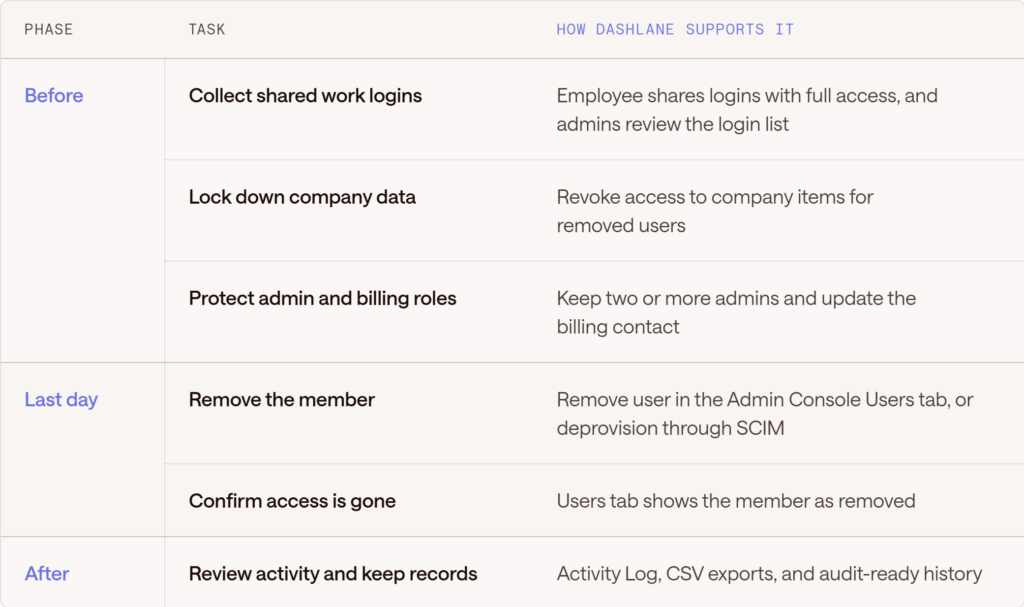
The secure offboarding checklist at a glance
This table summarizes each task and the Dashlane control that supports it. Some controls depend on your plan, so check the Help Center guide to offboarding for current details.
Phase 1: Prepare before the employee leaves
Start as soon as you know about the departure:
- Ask the employee to share work logins with full access: Have them share logins with a manager and with anyone responsible for tools and security. Note that unshared logins can't be accessed after removal.
- Turn on login list visibility: Admins on a Password Management or Credential Protection plan that doesn't use self-hosted SSO can see each member's login names and creation dates. Use login list visibility to check which business logins still need sharing. You can't see passwords or other data types.
- Turn on Revoke access to company items for removed users: If your plan has Spaces, set this in your Smart Space Management controls before you remove the employee.
- Set Business space domains: Smart Space Management moves logins with work domains into the Business Space. You can also stop members from exporting their Business Space logins.
- Update admin and billing roles: Keep more than one admin on your plan. If the departing employee is the billing contact, change it before removal.
- Send the employee guidance: If your plan has Spaces, remind them to export personal data from their Personal Space before they go.
Phase 2: Remove access on the last day
Remove former employees as soon as they leave. Dashlane recommends acting promptly to revoke access to work-related logins and free up the license. To remove a member manually:
- Open the Admin Console from the Dashlane browser extension, and select Users.
- Select the 3-dot menu in the member's row and select Remove user. To remove several members, select each checkbox and then select Remove.
- Confirm in the pop-up.
- Check that the member's name now appears grayed out in the Users tab.
Admins follow the same steps. If the member had a pending invitation they never accepted, Dashlane cancels it and the name disappears from the list. For security and privacy, Dashlane also prompts removed members to turn off 2-factor authentication (2FA) the next time they log in.
Phase 3: Verify and keep a record
Confirm the removal worked with these checks:
- Review the Activity Log: The Activity Log records when members are removed from your plan, changes to admin roles, and activity around shared links. It covers the past 15 months, and you can download it as a CSV file.
- Filter the Users tab: Use the Removed users filter to confirm each departure and see what remains.
- Export the user list: The Users tab CSV includes 2FA status, SSO enrollment, Password Health score, and last activity date, which helps with periodic access reviews.
- Reclaim the license: Removing a member frees their seat for a new plan member.
Automate offboarding with SSO and SCIM
If you remove members by hand, one missed ticket leaves an account open. System for Cross-Domain Identity Management (SCIM) connects your Identity Provider (IdP) to Dashlane so provisioning and deprovisioning follow each person's status. When HR or IT deactivates an employee in the IdP, Dashlane removes the member without a separate step.
If your plan has Spaces, turn on Revoke access to company items for removed users first, because SCIM removes the member but doesn’t change your Smart Space Management policies.
Dashlane supports this through Dashlane Confidential SSO & Provisioning. SCIM works with Microsoft Entra ID, Okta, JumpCloud, Duo, and PingID. See the SCIM Provisioning guide for setup steps. Dashlane runs Confidential SSO and SCIM Provisioning in confidential computing, so zero-knowledge encryption stays intact.
What happens to accounts after removal
The outcome depends on how the employee logs in and whether your plan has Spaces. Plan for each case.
- SSO users: They permanently lose access to their account and personal data as soon as you remove them. Remind them to export personal data beforehand.
- Master Password users: They may still lose access to their account and personal data if they don't prepare.
- Plans without Spaces: Removing a member removes their data, including work-related logins, so you don’t need an extra revocation step.
- Plans with Spaces: Turn on Revoke access to company items for removed users before you remove the member.
To restore a removed member, select Reactivate from the 3-dot menu in the Users tab. If you removed them fewer than 30 days ago, you can also log in to their account to access work-related logins. You may need their email, device, or a recovery method. After 30 days, you can’t access those logins in most cases, so collect shared logins before removal.
Common offboarding mistakes to avoid
- Waiting too long to remove access: Delays leave work logins exposed after the last day.
- Skipping the full access share: Logins shared with lower permissions aren’t recoverable.
- Forgetting the billing contact: Change it before you remove the employee.
- Relying on a manual checklist alone: SCIM handles removal so nobody has to remember it.
- Not checking removal: Confirm each departure in the Users tab and Activity Log.
Make offboarding repeatable with Dashlane
Run the same three steps for every departure: Recover shared logins before the last day, remove the member on the last day, and check the Activity Log afterward. Once you connect your IdP through SCIM, Dashlane handles removal, and your team owns the first and last steps.
Get a Dashlane demo to see offboarding controls in action.
Frequently asked questions about secure employee offboarding
What is secure employee offboarding?
Secure employee offboarding is the process of removing a departing employee's access to systems, data, and credentials while keeping shared business access intact. It includes transferring ownership, revoking accounts, and keeping an audit trail.
When should IT remove a departing employee's access?
Remove access as soon as the employee leaves the organization. Dashlane recommends removing former employees from the plan right away to revoke access to work-related logins and free up the license.
How do I offboard an employee in Dashlane?
First, ask the employee to share work logins with full access. If your plan has Spaces, turn on Revoke access to company items for removed users. Then select Remove user in the Users tab of the Admin Console. With SCIM, your IdP can handle removal for you.
Can I see what logins a departing employee has?
Yes, with login list visibility turned on. Admins see login names and creation dates for members still on the plan. They don't see passwords or other data types.
What happens to an employee's Dashlane account after removal?
It depends on how they log in and whether your plan has Spaces. Members who log in with SSO permanently lose access to their account when you remove them. Master Password users may also lose access if they don't prepare.
Can I restore a removed member?
Yes. Open the Users tab in the Admin Console, select the 3-dot menu in the member’s row, and select Reactivate. If you removed the member fewer than 30 days ago, you can also log in to their account to access their work-related logins. You may need access to their email or device, or a recovery method. After 30 days, you can’t access those logins in most cases.
Can SCIM automate offboarding in Dashlane?
Yes. With SCIM, you can use each member's status in your Identity Provider to provision and deprovision members in Dashlane. Deactivating the employee in your IdP removes the manual step.
Sign up to receive news and updates about Dashlane